How to transfer SpaceX shares from Fidelity Stock Transfer to your E*TRADE account
06/05/26
This page shows you how to request to electronically transfer shares from Fidelity Stock Transfer (the transfer agent) into your E*TRADE brokerage account.
What you’ll need before you begin:
A recent Fidelity Stock Transfer statement or official correspondence, which includes or provides the information below:
- Fidelity Stock Transfer account number (e.g., 1234567890)
- Account names/registration
- Unrestricted SpaceX share positions
Important eligibility requirements
- Only unrestricted shares can be transferred through this method.
- If your Fidelity Stock Transfer statement shows that your shares are restricted, the restriction must be removed before you can submit this request. Please call Fidelity Stock Transfer at 833-500-1036 for assistance with removing the restrictions, if applicable.
- To complete your transfer request, the Social Security number or Tax ID on file with Fidelity Stock Transfer must be the same that is on your receiving E*TRADE account.
How to submit the transfer request
Now that you have started your transfer request, please follow the following steps to complete your transfer request.
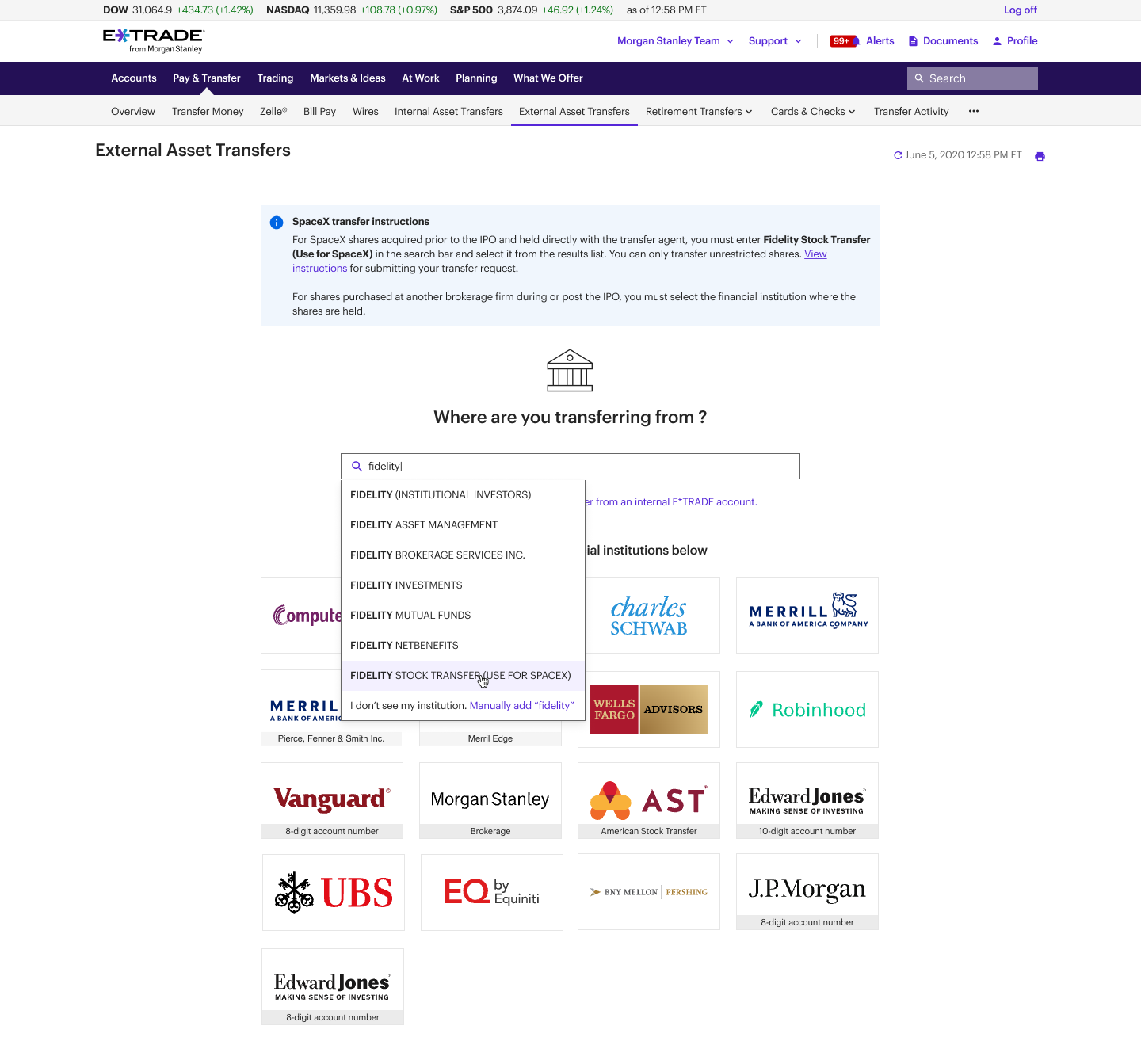
1. Choose where the shares are coming from
- On the “Where are you transferring from?” page, search and select Fidelity Stock Transfer (Use for SpaceX)
- Note: Please ensure the selected financial institution exactly matches the above institution name to prevent delays in processing.
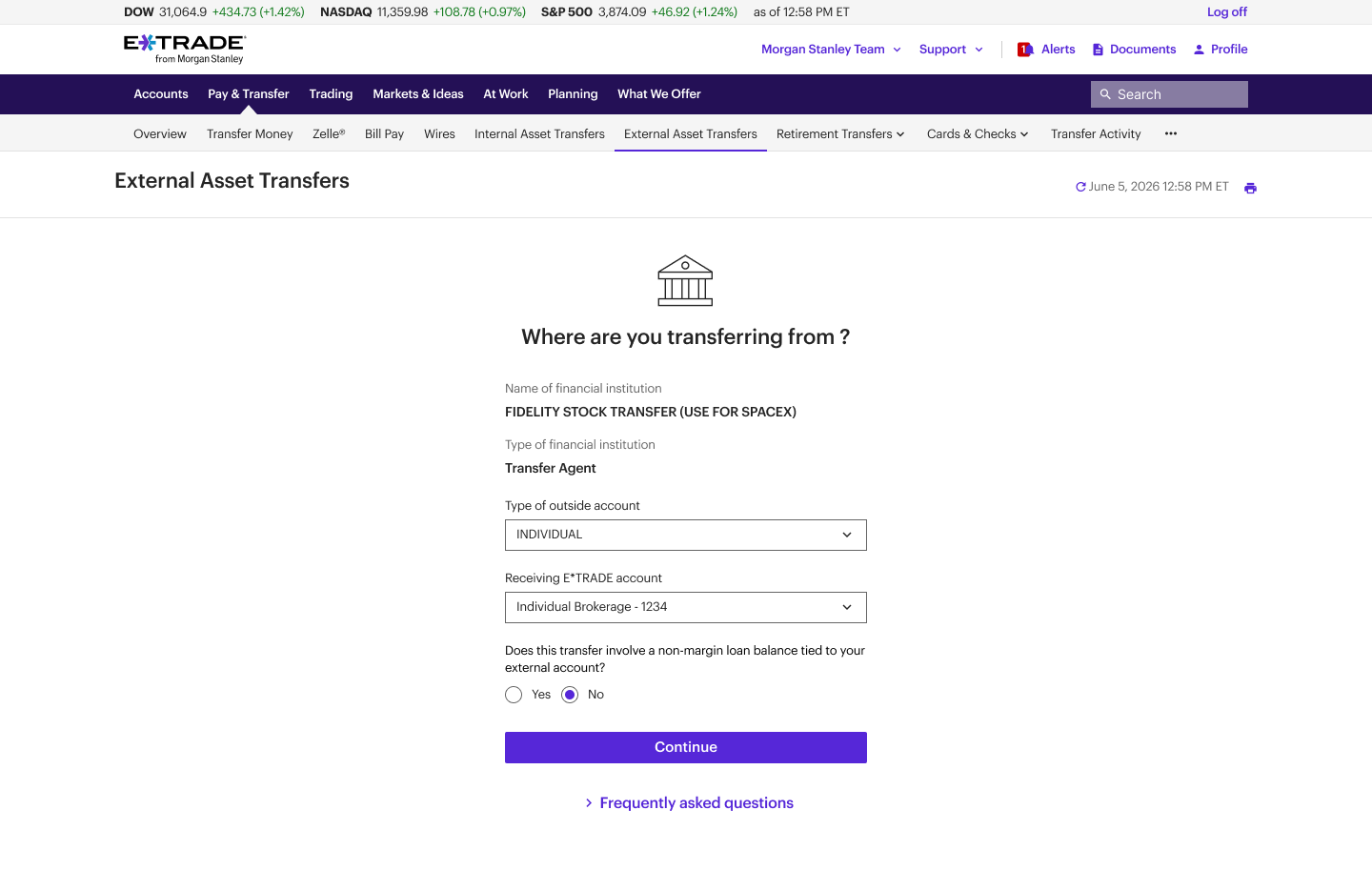
2. Select your outside account type and receiving E*TRADE account
- Select your outside account type. It must match exactly as it appears on your Fidelity Stock Transfer statement/correspondence.
- Select your receiving E*TRADE account
- Ensure ‘No’ is selected for the ‘Does this transfer involve a non-margin loan balance tied to your external account?’ question.
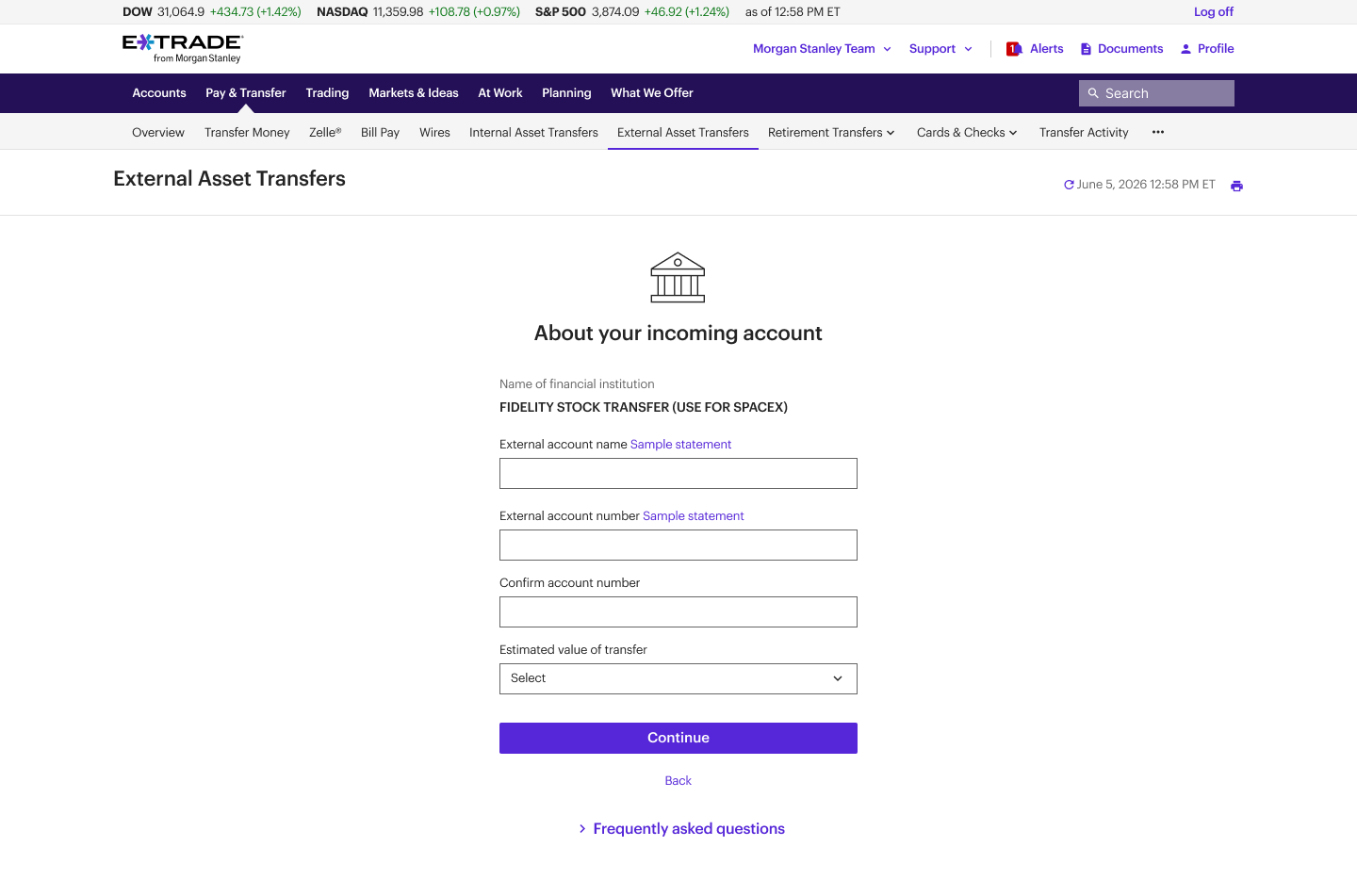
3. Enter your Fidelity Stock Transfer account details
Using your Fidelity Stock Transfer statement/correspondence, enter:
- Your Fidelity Stock Transfer account name (exactly as it appears on your statement).
- Note: If the account name does not match the receiving E*TRADE account name, you will need to answer the question “Are the account owners the same person(s)?” and upload a copy of your statement and signed account transfer form.
- Your Fidelity Stock Transfer account number
- Estimated value of transfer
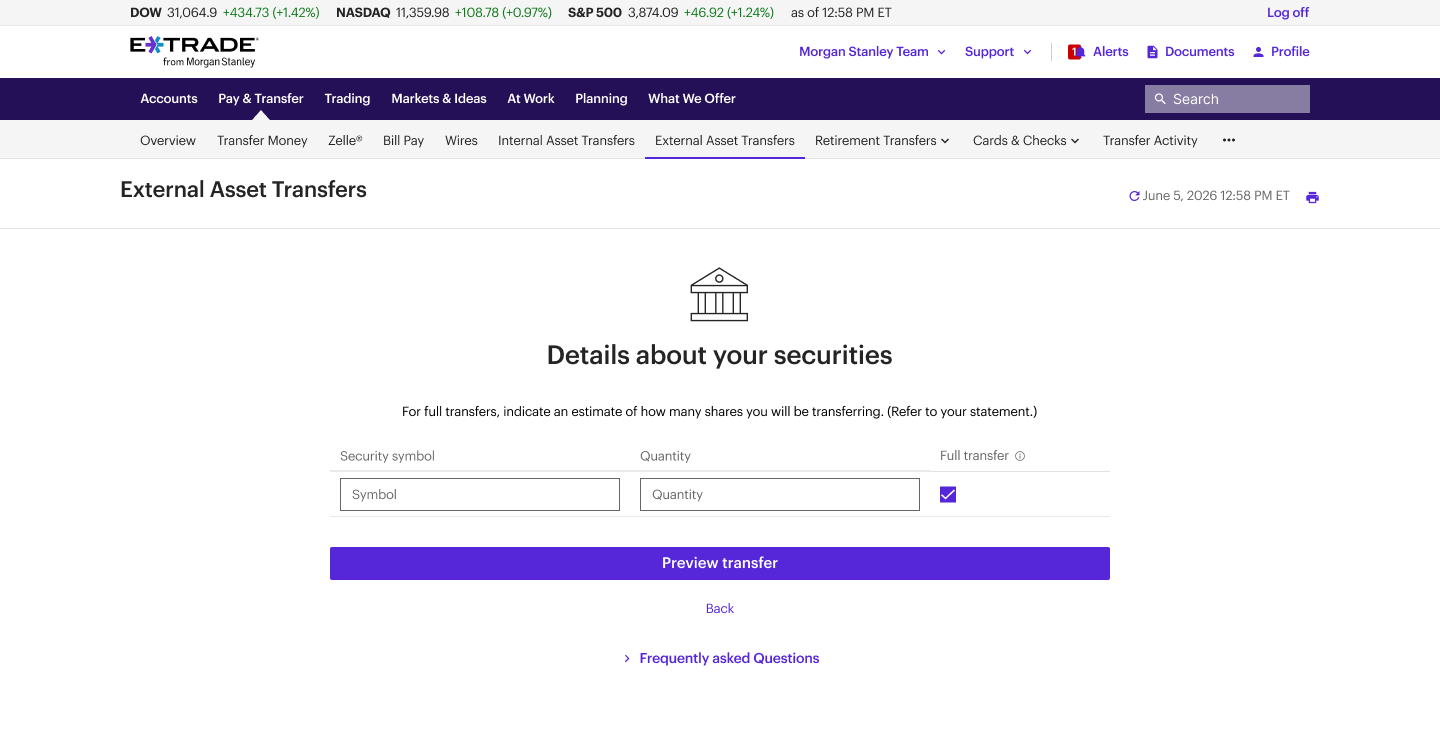
4. Complete the security and share amount
- Enter SPCX in Security symbol field
- Enter number of unrestricted shares in Quantity field
- If your request is a partial transfer, deselect the full transfer checkbox.
5. Preview your transfer
- Review and confirm your Fidelity Stock Transfer details
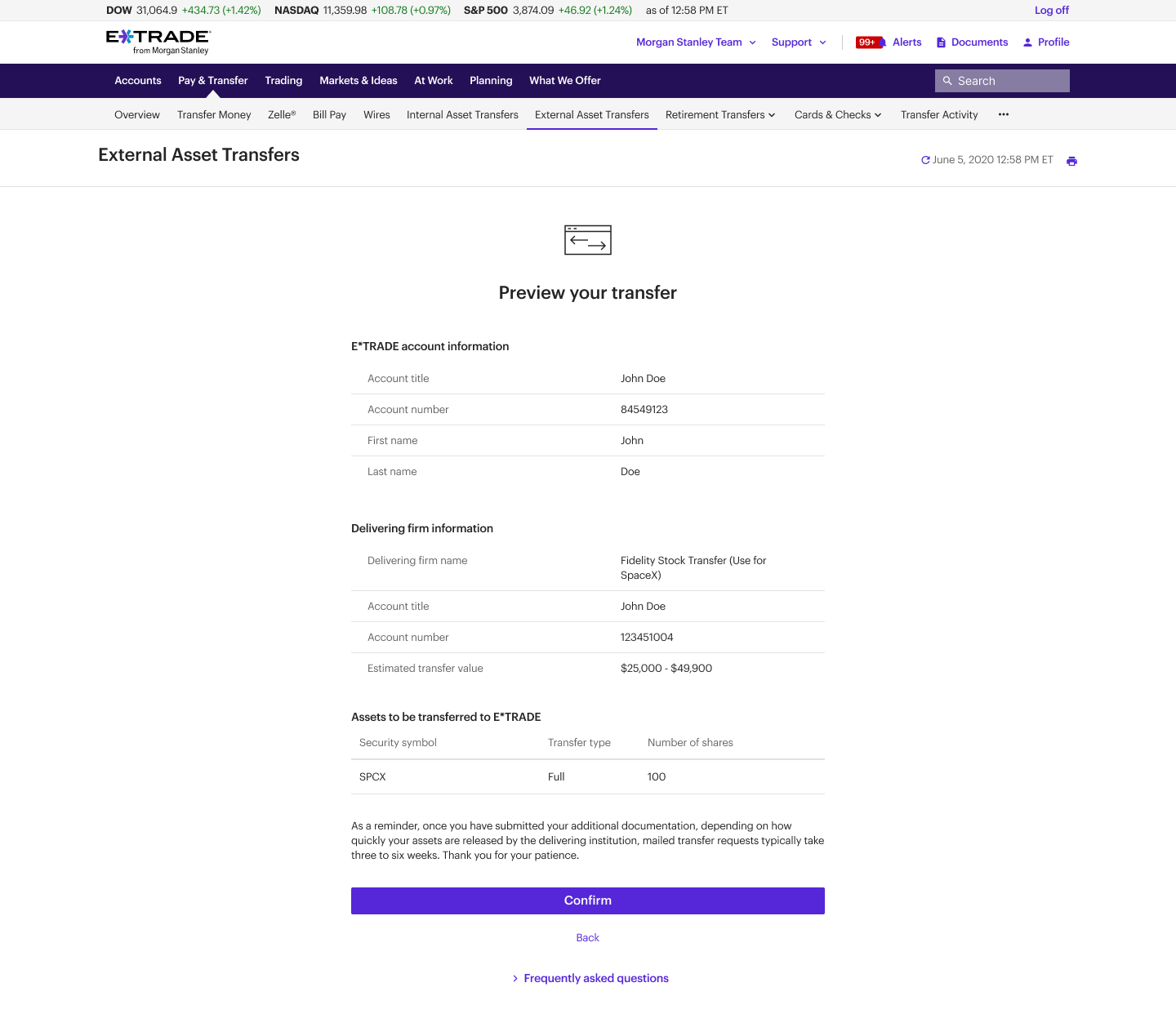
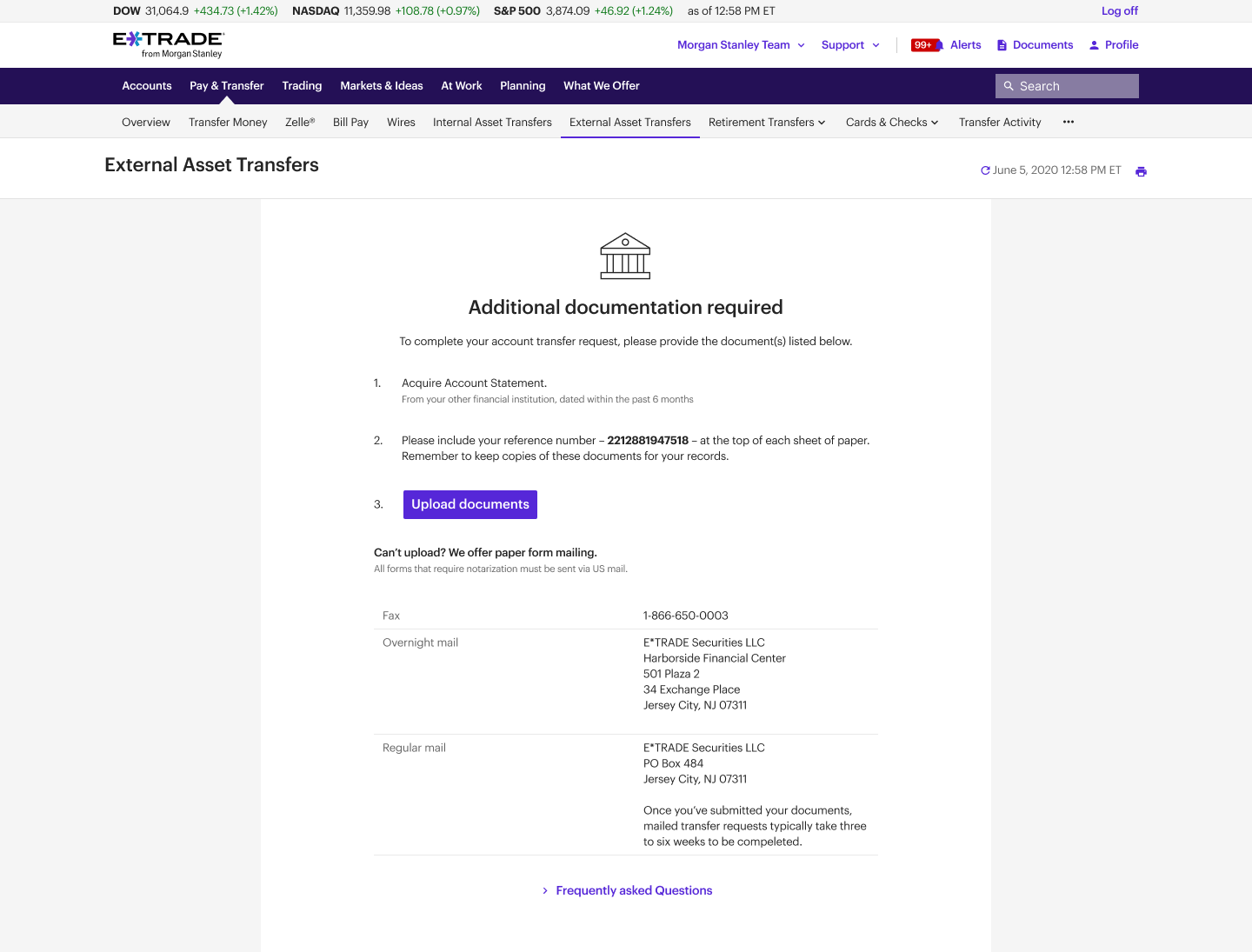
6. Upload your Fidelity Stock Transfer statement/correspondence
You must upload a copy of your Fidelity Stock Plan transfer statement or official correspondence before E*TRADE can send your request to the transfer agent.
What to expect after you submit
- You will receive alert notifications on the status of your transfer request in the Alerts inbox. If you have selected email delivery in the Alert Delivery Preferences, you will also receive them by email. You can also check the status of your transfer in the Message Center.
- Once your request is approved by Fidelity Stock Plan Transfer, shares typically post to your E*TRADE account the next business day by 12 p.m. ET.
- If Fidelity Stock Transfer rejects your request, please call 833-500-1036 for more information on how to resolve the issue. The most common rejections happen because the Social Security number or Tax ID doesn’t match what Fidelity Stock Transfer has on file.
CRC# 5536619 (06/2026)